

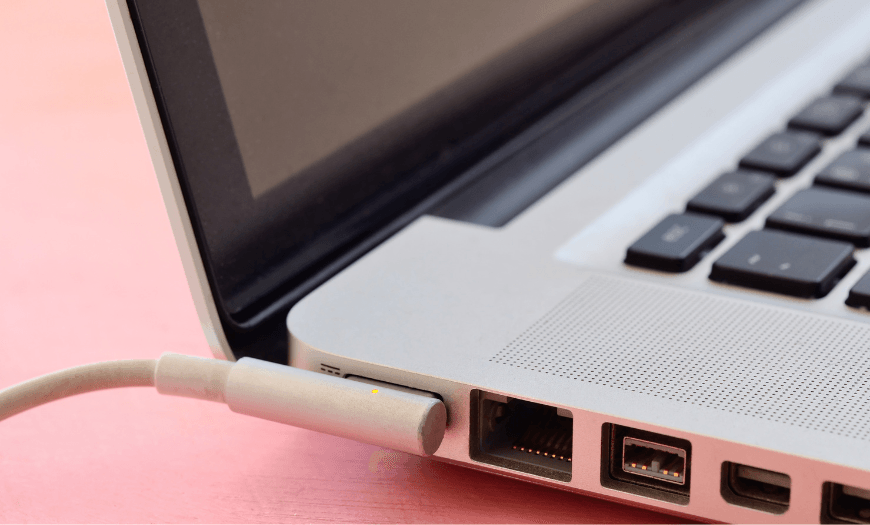
How to extend the laptop battery life?
There are many precautions to take with equipment batteries, especially laptop batteries. They are heavily used electronic products, used daily for many hours, with battery wear occurring faster than other components. By taking some precautions, it is possible to extend their life a little longer. Discover here which ones:
1 - Do not let the PC completely discharge
The lifespan of a battery can increase significantly if you avoid full cycles, that is, discharging the battery down to 0%. Ideally, keep the charge level between 40% and 80%.
2 - Be careful with the temperature
When the laptop operates at high temperatures, the battery tends to swell, thus losing lifespan and properties. Keep your PC in a cool place, never in the sun, especially when using it for more demanding tasks like gaming or multimedia editing. You can also opt for an aircooler stand that will keep your laptop cool and at the right temperature for its operation.
3 - Turn off the computer when it will no longer be used
This is one of the most important steps and yet one of the least followed by users. Most people just close the laptop lid or leave it on "stand by." This small gesture is responsible for consuming a large part of the device's battery. You should turn off the PC whenever you are not going to use it for the next few hours.
4 - Calibrate the battery regularly
Currently, all batteries of electronic equipment (laptops, smartphones, cameras, or any other device) are made with lithium. Laptops have between 3 and 12 cells.
The battery has an "internal meter" that indicates how much charge is available in each cell, calculates the average between them, and sends this information to the operating system so that the user is informed how much battery is still available.
With battery wear, the computer starts to do it incorrectly. To prevent this, it is recommended to calibrate the laptop battery to readjust the default values.
5 - Close the applications and programs
Often we have some applications or programs running in the background that consume the computer's battery without us realizing it.
And when you finish using these programs, you will be able to save a lot of battery. To do this, just search for "Battery" in the Windows search bar and open the battery settings. There you will find which programs are running in the background, consuming your battery.
Maria do Mar Souza
26/06/2021
Share this article:
1 comment
Não Sabia disso obgd
Best practices during a Zoom meeting
Electronic consumption has changed in the last 10 years